Managing AI agent identities with midPoint
A step-by-step guide to governing AI agents in midPoint: connect Straza as a resource, import MCP servers and roles, give a person an account, then create an archetype for agents, add a sponsor, review access and disable an agent.
On this page10 sections
An AI agent that works with an API key has access that no access review lists and no leaver process takes away. midPoint handles that problem for people every day. A person has an account with an owner, gets roles through assignments, shows up in reviews, and is disabled when they leave. This guide sets up the same for AI agents in midPoint, in eight steps. The first three connect Straza and give a person an account, and the rest do the same for an agent.
midPoint has no AI agent type of its own yet. Its roadmap lists “Non-human identities (AI agents)” for a later release, but you can govern agents today with one archetype, a few schema items, one resource and the kind of roles you already build.
The steps and screenshots come from the demo stack of Straza, which runs midPoint 4.10.3. In that stack midPoint decides who the agents are and which roles they hold, and Straza enforces those roles each time an agent calls a tool. Both are open source.
The stack also ships every midPoint object mentioned here as working configuration. That includes the archetypes, the schema extension, the full resource definition with its mappings, the live synchronization tasks, the roles and a few sample agents. You can copy them from one folder and adapt them, or run the whole stack as described at the end.
What you end up with
midPoint treats Straza as a target system like any other. It is a resource with a connector, accounts and entitlements. The agents are accounts on that resource, and the MCP servers they use are reached through Straza.
midPoint stays the place where you decide which agents exist, who answers for each of them and which roles they hold. Straza applies those roles when an agent calls a tool. A role determines which MCP tools the agent can see, a policy can make a call wait for a person’s approval, and Straza logs each decision it makes.
Step 1: Add Straza as a resource
Straza is connected through a single midPoint resource, defined in straza-resource.xml. It uses a ConnId connector, which is open source under Apache-2.0, and it authenticates with one API token that you create in Straza.
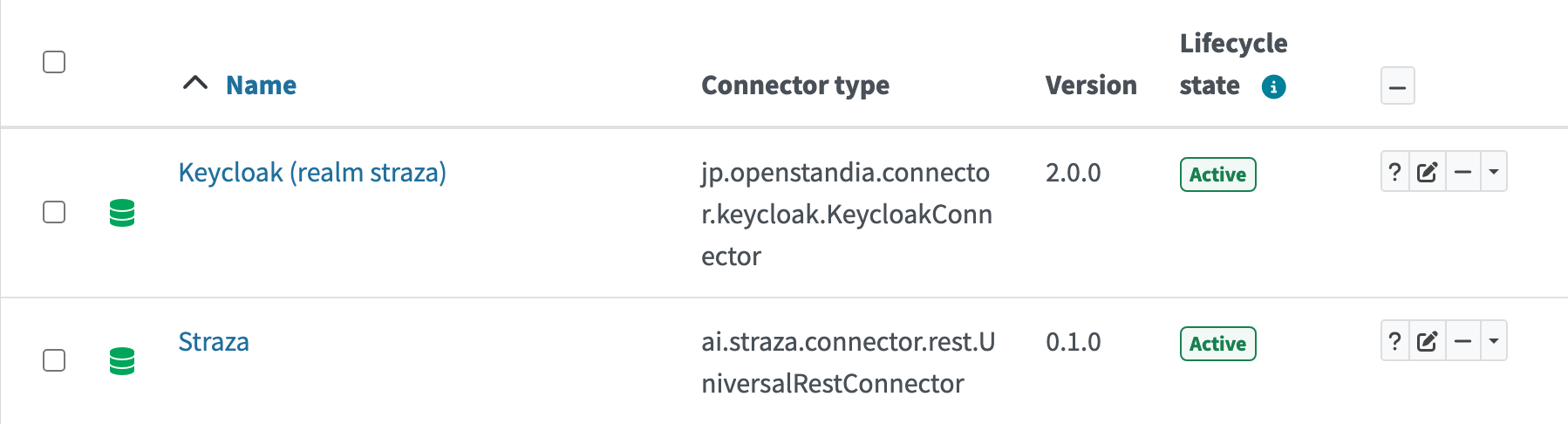
The resource defines three object types. The account type is for the people and agents that midPoint provisions to Straza. The other two are entitlements that midPoint reads from Straza, one for roles and one for MCP servers.
The account type has four outbound mappings that matter for governance. They carry the user type, the agency mode, the sponsor and the activation status. Steps 3 to 5 cover the first three, and step 8 uses the activation status to disable an agent.
The resource’s mappings refer to the schema extension, to the archetypes and to the metarole from step 3, so those objects have to be in midPoint before the resource is imported. Connect midPoint in the documentation gives the full import order.
The connector and its schema file
The connector is called universal-rest-connector. It is a generic ConnId connector for REST and SCIM 2.0 APIs, and it contains nothing specific to Straza. Everything it knows about a target system comes from one JSON schema file, which declares the object classes, their endpoints and attributes, and the operations each class supports.
For Straza, use straza-schema.json from the Straza repository. It is the file the demo stack runs, together with release 0.1.0 of the connector. Put the JAR into midPoint’s icf-connectors directory, and set three properties on the resource: baseUrl is the address of your Straza server, apiToken is the token, and schemaFilePath is where midPoint finds the schema file. The JAR and the schema file belong together, so take both from the same place.
Step 2: Import the MCP servers and roles
With the resource in place, midPoint reads what Straza holds. Live synchronization only picks up changes made after it starts, so the stack runs one reconciliation task for each object type to bring in what already exists. Three live synchronization tasks poll Straza for the changes that follow, and in the demo stack they run every ten seconds.
MCP servers are registered in Straza, and midPoint imports them. Each one becomes a service with the archetype mcp-server, and its name gets the prefix MCS:.
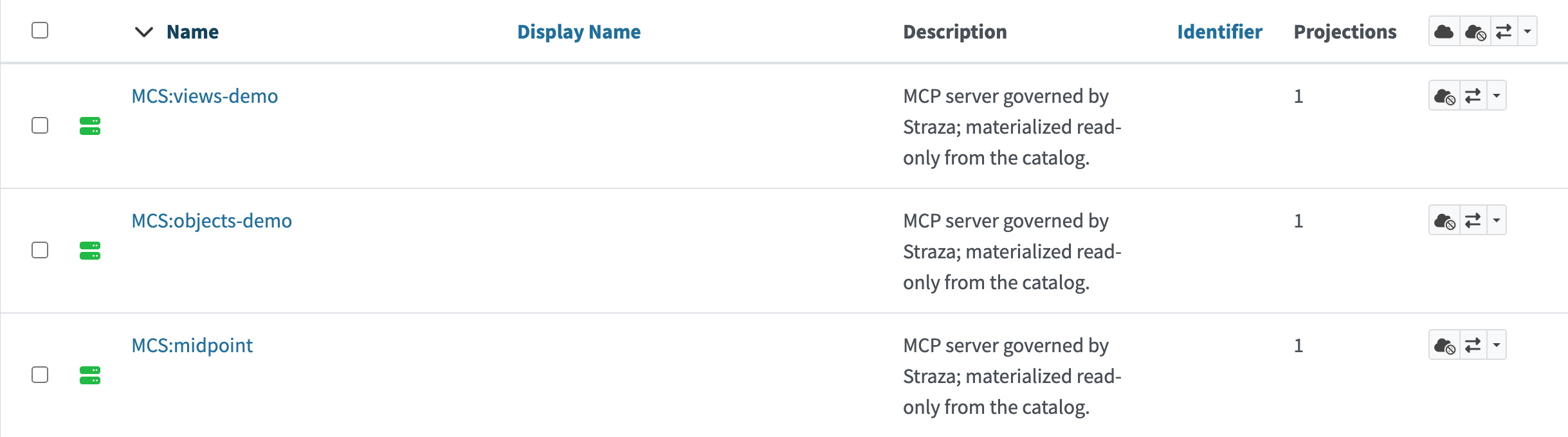
One of the servers in the screenshot is called midpoint. That is an MCP server for midPoint itself, which agents can use to look up access and request roles. It is described on its own page.
Roles are imported the same way. A role is created in Straza, where it is bound to the tools it grants. In midPoint a business role, which groups other roles, gets the prefix BR: and every other role gets AR:. Each application role belongs to one MCP server, and the Straza application roles view shows that server in its own column.
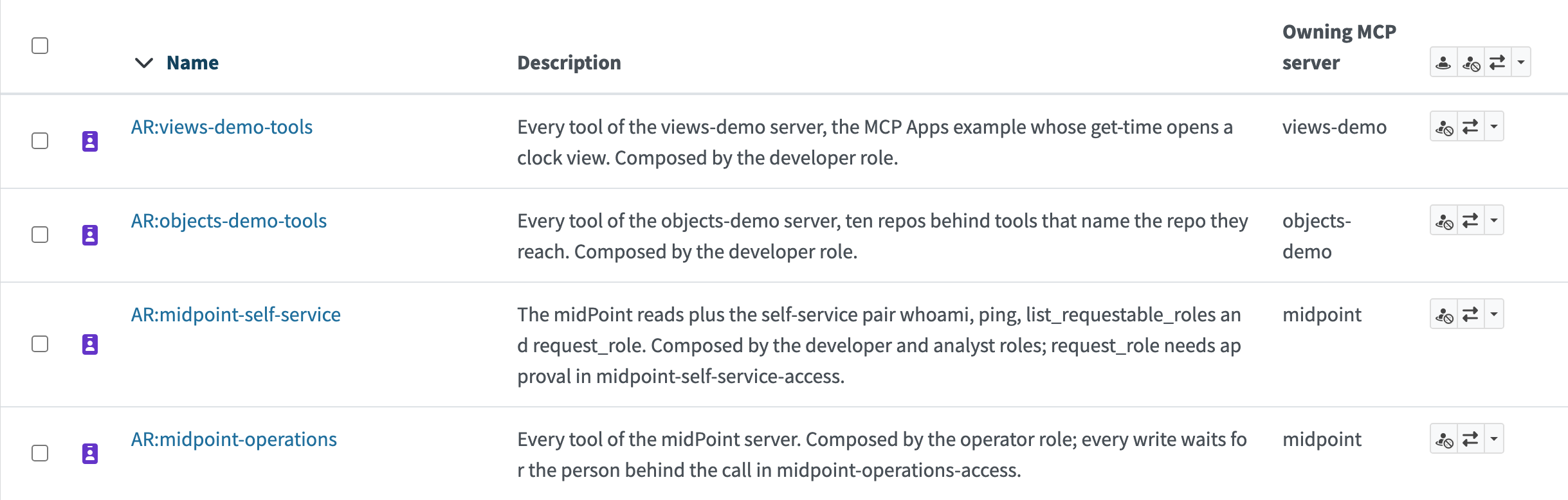
midPoint only assigns these roles. Creating, renaming and deleting them happens in Straza.
Administration of an MCP server is handled with a role as well. When a server is registered, Straza creates an admin role for it, and midPoint imports that role as AR:mcp-admin- followed by the server’s name. You assign and review it like any other role. The earlier post on the role model explains the four kinds of role.
Step 3: Give a person an account and a role
Start with a person, because nothing in this step is specific to agents. ivan is a systems administrator in the demo stack. He has the archetype employee, which sets his user type to human, and two role assignments.
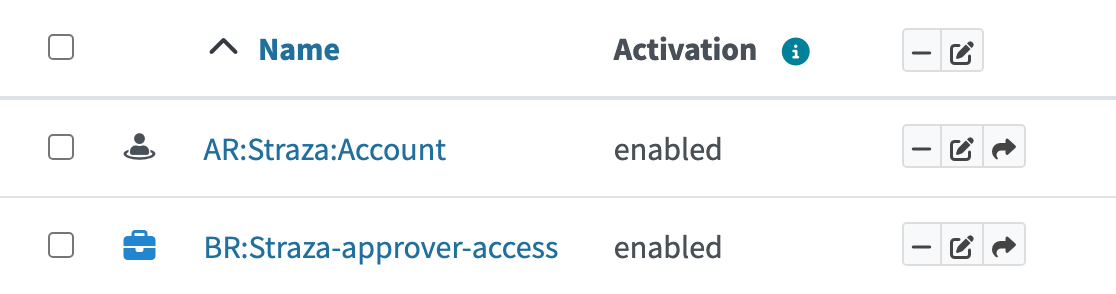
AR:Straza:Account is a role defined in midPoint. It gives its holder an account on the Straza resource and no access. When a user no longer holds a role that carries the account, midPoint removes the account and Straza deactivates the identity.
BR:Straza-approver-access is an access package, which is a business role built in midPoint with inducements to roles imported from Straza. This one includes AR:sec-approvers, the role that the stack’s policies name as approvers, so ivan is one of the people who approve or deny a call that a policy holds. The package also gives him a login in Keycloak, where people sign in.
A metarole turns the assignment into access. Every imported role has the metarole Straza role metarole assigned, and the metarole’s second-order inducement adds the matching role membership to the Straza account of whoever holds the role.
An agent gets its account and its roles the same way, and steps 4 to 6 set that up.
Step 4: Create an archetype for AI agents
In the demo stack an AI agent is a midPoint user as well. Its archetype is ai-agent instead of employee. The archetype gives agents their own label and icon, and it sets two extension properties on each agent. The user type becomes agent and the agency mode becomes autonomous. Straza reads both when the account is provisioned.
The two mappings are weak, so you can override them for a single agent. One agent in the stack has the agency mode supervised, because it works under a person’s direction.

The AI agents entry in the menu is an object collection view that filters users by this archetype. It is added to the system configuration.
Step 5: Add a sponsor to each agent
Each agent should have a person who is accountable for it. midPoint has no sponsor property, so the stack adds one through a schema extension. The new property is a reference to another user. An object template that belongs to the archetype copies the sponsor’s username into a second property, and that username is what midPoint provisions to Straza.
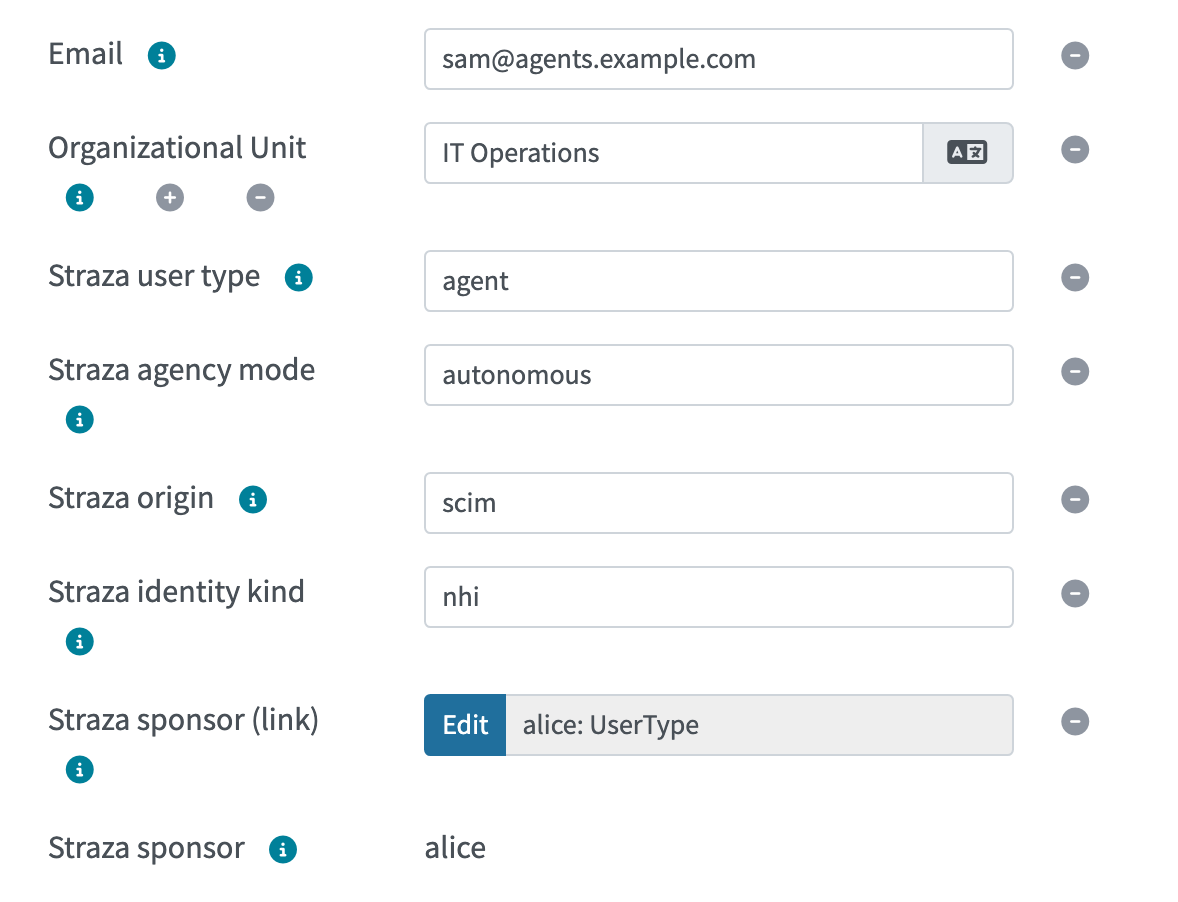
Straza uses the sponsor for approvals. When a policy holds a call for approval and names no approver, the request goes to the agent’s sponsor. The audit record of the call includes the person who approved or denied it.
We ran into one midPoint behaviour here. On 4.10.3 the archetype’s object template ran when a user was edited directly, but not during import or reconciliation, so test that path in your own deployment. The stack also has no rule for what happens when a sponsor leaves the company. You need to decide who takes over their agents, the same way you decide who takes over their other responsibilities. While an agent has no valid sponsor, calls that need the sponsor’s approval are refused.
Step 6: Assign roles to an agent
The agent sam-sre-agent has the same two kinds of assignment as ivan in step 3. AR:Straza:Account gives it an account on the Straza resource, and BR:Straza-operator-access is its access package.
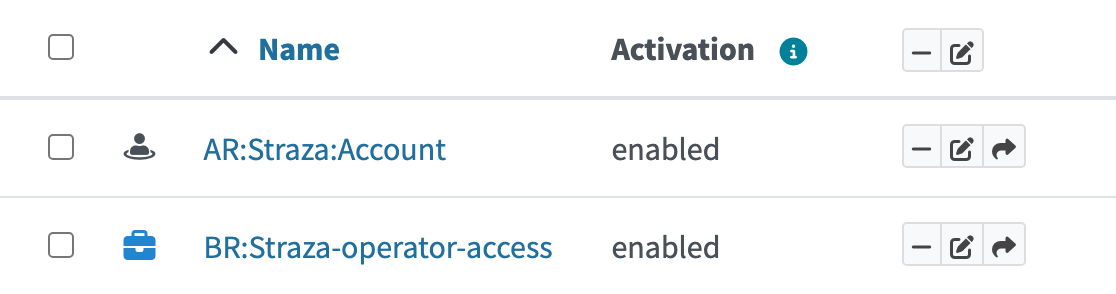
The package has an inducement to BR:operator, a business role imported from Straza. In Straza, operator contains two application roles. One grants the read-only tools of the demo-tools server. The other grants all tools of the midPoint MCP server, with a policy that holds every write for approval.
The package gives a person a Keycloak login, but it gives an agent none. An agent authenticates to Straza with its own key.
Straza builds the agent’s MCP tool list from its roles, so the agent only sees tools that one of its roles grants. In the demo stack a role created in Straza appears in midPoint after about ten seconds. A new assignment reaches a running agent session at its next check-in with Straza, which a session that keeps working makes within about three minutes. Removing a role does not interrupt a running session. The session keeps the role until its next check-in with Straza.
Step 7: Review agent access
Agents are users and their access consists of role assignments, so you can review them with a normal access certification campaign. You can scope a campaign to users with the AI agent archetype to review what each agent holds, or to the Straza application roles to review who holds each role.
The application roles view helps the reviewer, because it shows the MCP server a role belongs to. If a role is limited to certain repositories or databases, a Covers column lists them. The demo stack does not include a campaign definition, so there is no screenshot for this step.
Step 8: Disable an agent
To stop an agent, disable its user in midPoint. You can set the administrative status on the Activation panel, or let your existing leaver process do it.
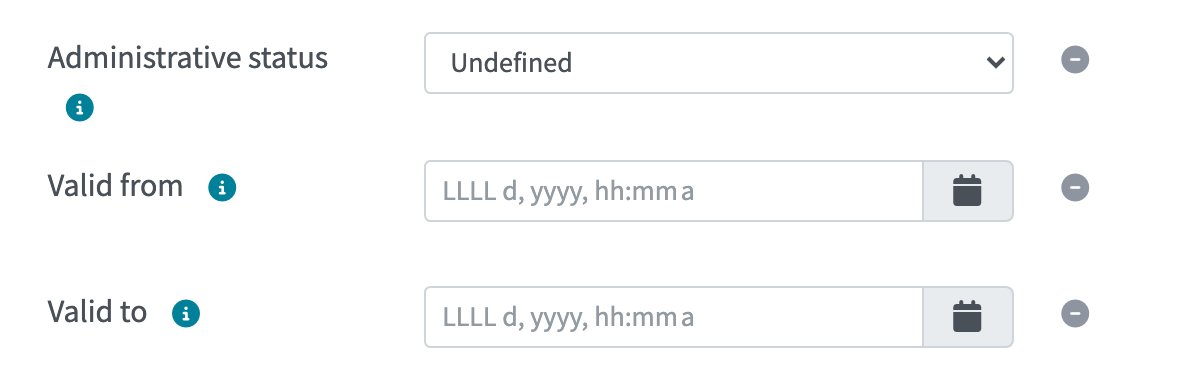
midPoint then updates the account on Straza to inactive. Straza disables the identity, revokes all of its sessions and refuses further calls from it. While the Straza service on the agent’s machine holds the session’s push stream, the session ends within seconds. If that stream is down, the session learns of it when it next renews its token, at most about three minutes later.
Deleting the user in midPoint has the same effect, and Straza keeps the identity’s record. If you enable the agent again, its old sessions stay revoked and it opens a new session at its next check-in.
Disabling the agent only in your identity provider does not end its sessions. That blocks the next sign-in and nothing else, so the disable has to reach Straza through midPoint.
Run the demo stack
The demo stack starts midPoint, Straza and the sample agents on one machine with Docker:
git clone https://github.com/strazahq/straza.git && cd straza
deploy/compose/eval-stack/up.sh
You need Docker with Compose 2.24 or later, four CPU cores, 8 GB of memory with swap and 20 GB of free disk space. The stack is ready when the seeder prints EVAL STACK READY, followed by the addresses and logins for midPoint and the Straza console. All passwords in the stack are public defaults, so run it only on a network you trust. The tutorial Try it on the demo stack continues from there.
To connect a midPoint of your own, follow Connect midPoint in the Straza documentation. The midPoint objects of the demo stack are a good starting point, since they include the resource configuration, the live synchronization tasks, the archetypes and the roles.
midPoint is Evolveum’s open-source identity governance platform. Straza is an independent project and is not affiliated with Evolveum.